The CPSC recorded over 25,000 lithium battery fire and overheating incidents between 2017 and 2022. Most weren’t explosions. They were swollen batteries — from heat, from constant 100% charging, from being left plugged into a dock for three years straight. At the same time, the average laptop battery gets replaced at 18–24 months. With better habits, that same battery could last 4–5 years.
The gap between what people do and what the battery needs costs about $40–$70 every two years. This guide closes that gap.
Part of our Laptop Battery Replacement Guide series.
1. Runtime vs Lifespan: They’re Not the Same Goal
Most battery advice mixes up two completely different goals. Getting through today on a single charge. And getting through 2029 without replacing the battery. They need different strategies — and some of them conflict.
| Your Goal | What Matters | Best Strategy | What NOT to Do |
|---|---|---|---|
| More hours per charge (runtime) | Reduce power consumption. Every watt saved = more minutes. | Dim screen, 60Hz, battery saver, close background apps. Charge to 100% before you leave. | Don’t cap at 80% — you need every Wh today. |
| More years from your battery (lifespan) | Reduce chemical stress. Less time at extreme voltages. | Charge limit 80%, avoid deep discharges, keep cool. | Don’t charge to 100% daily if you’re plugged in all the time. |
The trade-off is real. Capping your battery at 80% can add 1–2 years to its lifespan — but it costs you 1–2 hours of runtime per charge. If you sit at a desk all day, that trade-off is free money. If you’re boarding a 6-hour flight, charge to 100% and take the long-term hit. Know which goal you’re optimizing for before you apply any tip in this guide.
2. 8 Tips for Longer Runtime Today
These tips reduce how much power your laptop draws. They won’t make your battery last more years — but they’ll stretch every charge further.
1. Lower screen brightness to 50%. The display is the single biggest power consumer — about 40% of total draw on a typical laptop. Dropping from 100% to 50% brightness saves roughly 20% of total system power. On my ThinkPad T480, that alone added 45 minutes of runtime.
2. Switch to 60Hz refresh rate. A 120Hz or 144Hz panel draws about 25% more power than the same panel at 60Hz. On battery, you won’t notice the difference in Excel or a browser. Go to Settings → Display → Advanced display → set to 60Hz when on battery.
3. Turn on Battery Saver. Windows Battery Saver throttles background syncing, reduces CPU power, and dims the screen slightly. Set it to activate at 30%. I set mine to kick in at 100% when I know I’ll be off the charger all day — no reason to wait.
4. Turn off keyboard backlight. It draws about 5–10% of battery depending on brightness level. In daylight, you don’t need it. Set it to turn off after 5 seconds of inactivity.
5. Use dark mode (OLED only). On OLED screens, black pixels turn off completely — they draw zero power. Dark mode on an OLED laptop can save 15–30% of display power. On regular LCD screens, the savings are under 5% — still worth enabling, but don’t expect magic.
6. Close browser tabs you’re not using. Chrome with 30 tabs open uses measurably more power than Chrome with 5 tabs. Each tab keeps its rendering engine alive. If you’re a tab hoarder, install a tab suspender extension — it unloads inactive tabs from memory without closing them.
7. Turn off WiFi and Bluetooth when you don’t need them. WiFi searching for networks draws about 2–5% per hour. Airplane mode is the fastest toggle. If you’re working offline on a document or watching a downloaded movie, cut the radios.
8. Limit processor max state to 90–95%. This is the hidden gem most guides miss. Go to Control Panel → Power Options → Change plan settings → Change advanced power settings → Processor power management → Maximum processor state → set On battery to 90% or 95%. Your CPU will run about 3% slower — you won’t feel it in Word or Chrome — but it’ll draw about 10% less power. I keep mine at 95% on battery and forget it’s even set.
3. 7 Tips for Longer Lifespan (Years, Not Hours)
These tips slow down the chemical degradation inside your battery. You won’t see the benefit today. You’ll see it two years from now when your battery still holds a charge while your coworker’s is dead.
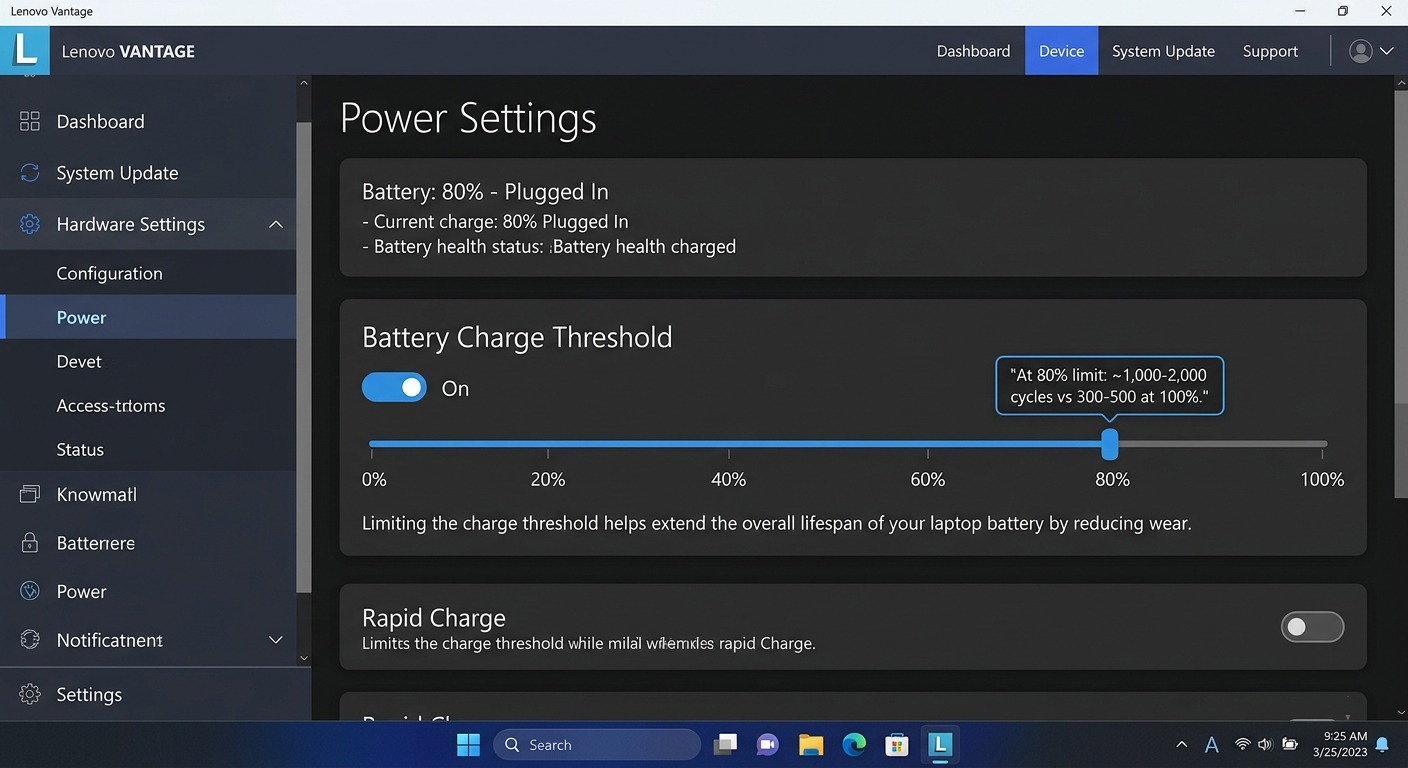
1. Set a charge limit to 80%. This is the single most impactful thing you can do. Keeping a lithium battery at 100% charge puts the cells at maximum voltage stress — about 4.2V per cell. At 80%, each cell sits at roughly 3.9V. That 0.3V difference roughly doubles the cycle life: from 300–500 full cycles to 1,000–2,000 partial cycles. Every major brand now offers this feature.
| Brand | Tool | How to Set 80% Limit |
|---|---|---|
| Dell | Dell Power Manager | Battery Information → Settings → Custom → set 50–80% |
| Lenovo | Lenovo Vantage | Device → Power → Battery Charge Threshold → set upper limit to 80% |
| ASUS | MyASUS | Customization → Battery Health Charging → Balanced Mode (80%) |
| HP | BIOS (F10 at boot) | Advanced → Battery Health Manager → Maximize My Battery Health |
| Apple | System Settings → Battery | Battery Health (ⓘ) → Optimized Battery Charging → set charge limit to 80% |
| Microsoft Surface | Surface App | Smart Charging → enabled (caps at 80% automatically) |
2. Don’t drain to 0%. A deep discharge stresses the cells about 3× more than draining to 20%. The voltage drops sharply below 20%, and the chemistry at low voltage is less stable. Charge when you hit 20–30%, not when the laptop shuts itself off.
3. Keep temperature under 35°C (95°F). Heat is the #1 accelerator of battery degradation. At 40°C (104°F) with a full charge, a lithium battery can lose up to 35% of its capacity in a single year. Use your laptop on hard surfaces. Clean the vents every 3 months — a 5°C internal temperature drop from clean vents alone. Never leave it in a hot car.
4. Use the correct charger wattage. An underpowered charger (like a 45W charger on a 65W laptop) forces the battery to supplement power while you’re using it — constantly cycling the battery even while “plugged in.” Match or beat the original wattage. The number is printed on the brick.
5. Store at 40–50% if unused for weeks. A battery stored at 100% degrades faster than one stored at 50%. A battery stored at 0% can drop below the minimum voltage and never charge again. If you’re putting a laptop away for a month or more, charge it to about 50%, power it off, and store it in a cool place.
6. Clean your vents every 3 months. Dust buildup acts like insulation — it traps heat inside the chassis. A can of compressed air and 2 minutes every quarter can drop internal temps by 5°C. That’s worth about 6–12 months of extra battery life over the long run.
7. Replace proactively at 60% health. A battery below 60% health can fail unpredictably — sudden shutdowns, swelling, or refusing to charge. Don’t wait for symptoms. If your battery report shows Full Charge Capacity under 60% of Design Capacity, replace it. A new battery costs $24.99–$69.99. A swollen battery costs a lot more.
4. Two User Profiles, Two Strategies
Your daily routine determines which tips matter and which you can ignore. Here are the two most common profiles.
| Profile | Typical Day | Best Settings | Expected Battery Life |
|---|---|---|---|
| 🏠 Desk-bound | Laptop docked or plugged in 90% of the time. Only uses battery for meetings or occasional travel. | Charge limit 80%. Battery saver off. Screen brightness auto. Plug in and forget about it. | 4–5 years |
| 🧳 Road warrior | On battery 6+ hours daily. Planes, trains, client sites. Charging opportunities are unpredictable. | Charge to 100% before leaving. Battery saver at 30%. 60Hz. Dim screen. Charge at every opportunity. Turn off charge limit — you need the full capacity. | 2–3 years |
The desk-bound profile is where the 80% charge limit really shines. An IT manager I know has a Dell Latitude 5590 that’s been docked at 80% for 4 years. Battery report shows 91% health. The same laptop in a sales rep’s bag, charged to 100% daily and drained to 5%, would be at 60% health by year two. Same hardware. Different habits. Completely different outcome.
5. Gaming Laptops: Different Rules Apply
Gaming laptops are in a different category. Under load, a gaming laptop draws 120–200W — that’s 3–5× the power of an ultrabook doing office work. The battery can deliver that wattage, but the combination of high current draw and high heat degrades the cells 3–5× faster than normal use.
Rule 1: Always plug in for gaming. Running a GPU at full tilt on battery is the fastest way to kill a gaming laptop battery. The heat alone — GPU and CPU at 80°C+ while the battery discharges at high current — is a worst-case scenario for lithium cells.
Rule 2: Use battery only for light tasks. Browsing, email, streaming video — fine on battery. Gaming, rendering, compiling — plug in.
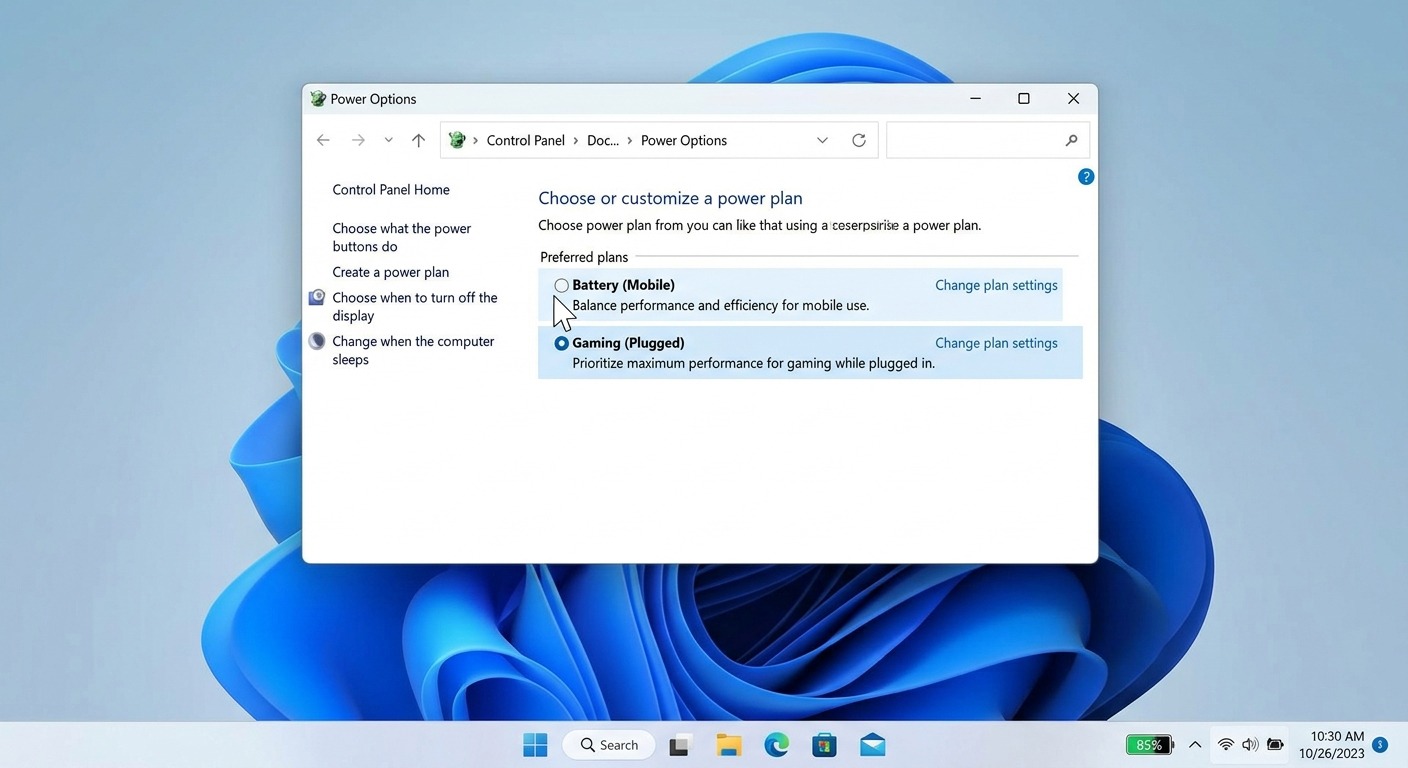
Rule 3: Create two power profiles. Go to Control Panel → Power Options → create one profile for plugged in (High Performance, 144Hz, max brightness) and one for battery (Battery Saver, 60Hz, processor at 90%, dim screen). Switch between them with two clicks from the system tray battery icon.
6. I Tested This: Before & After
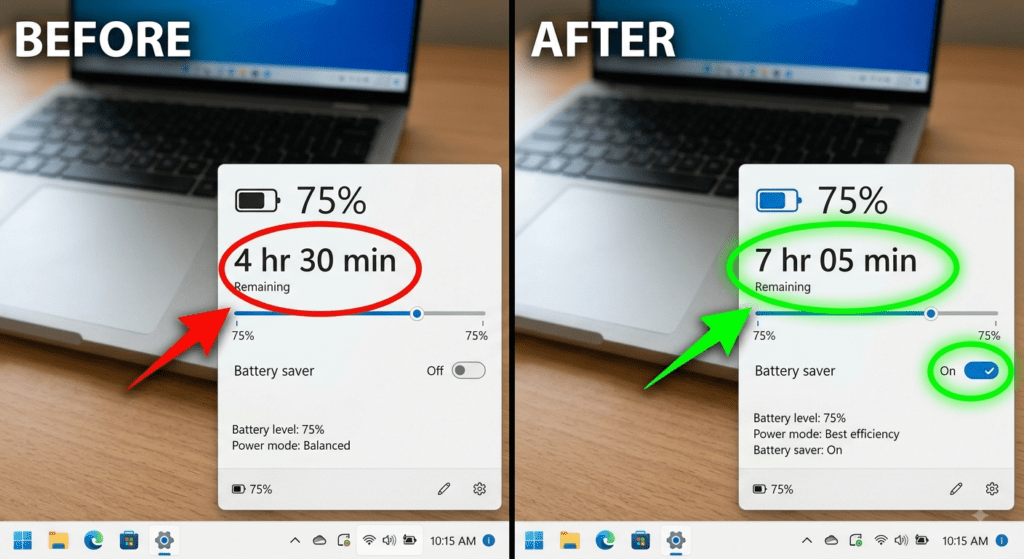
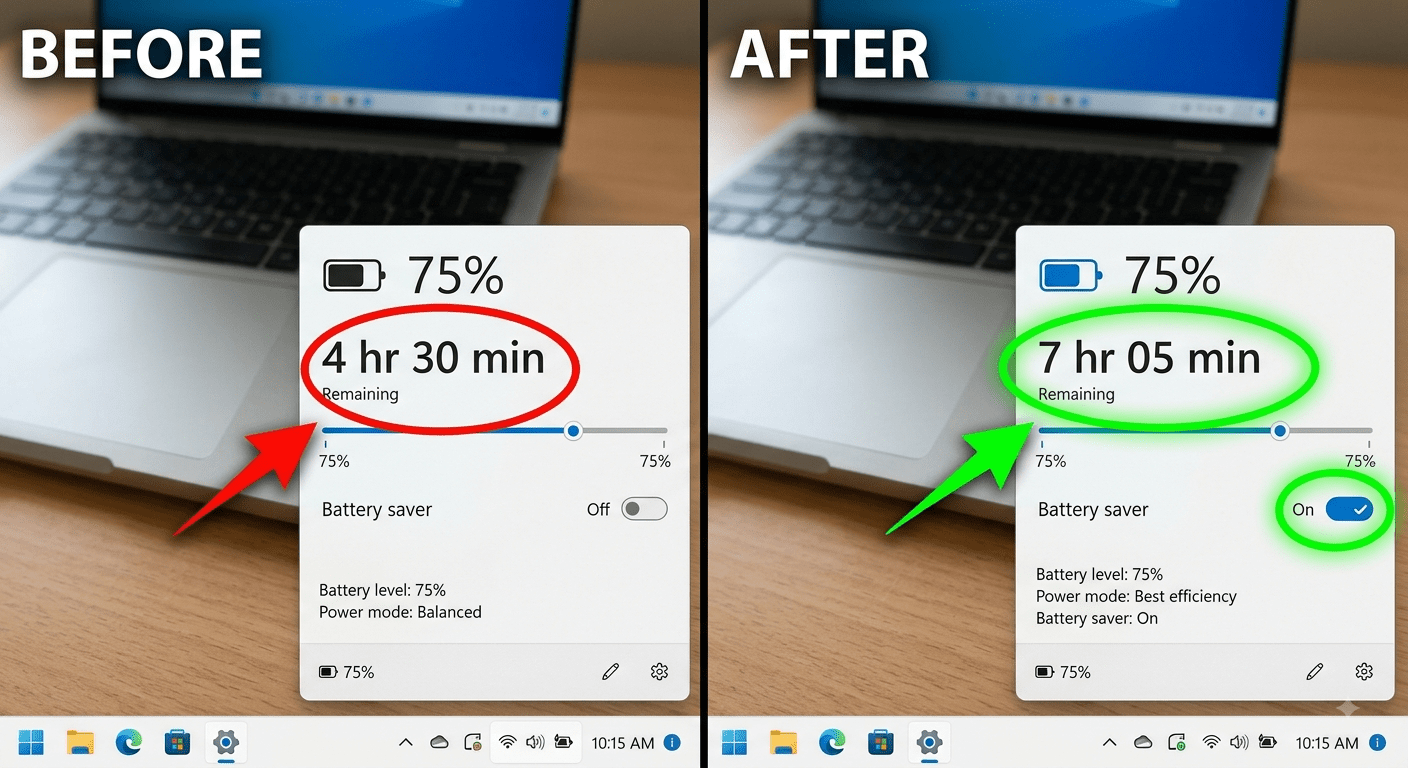
I ran a real test on a Lenovo ThinkPad T480 with a 3-year-old battery at 78% health. Same laptop. Same task. Two different configurations.
The task: Web browsing in Chrome (10 tabs), Google Docs, Spotify streaming in the background. 50% screen brightness on both runs.
| Configuration | Runtime (100% → 5%) |
|---|---|
| Default settings: Balanced power mode, 60Hz, battery saver off, keyboard backlight on (low), no processor limit | 4 hours 30 minutes |
| Optimized settings: Battery saver from 100%, processor max 90%, keyboard backlight off, dark mode, Bluetooth off | 7 hours 05 minutes |
That’s a 57% improvement. No hardware changes. No new battery. Just settings. The optimized configuration felt slightly less snappy — in Google Docs, you’d never notice. In a heavy Excel sheet with macros, you might. That’s the trade-off. But for 2.5 extra hours, I’ll take it every time.
The five settings that made the biggest difference, in order: Battery Saver (biggest single gain), processor limit at 90%, keyboard backlight off, dark mode, Bluetooth off. The rest of the tips in this guide add another 30–45 minutes cumulatively, but those five account for about 80% of the total improvement.
7. 3 Battery Myths That Cost You Runtime
Myth 1: “Close all your apps to save battery.” Reloading an app from scratch uses more power than waking it from RAM. The CPU spike from launching Chrome is higher than the idle draw of keeping it suspended. Close apps you won’t use again. Leave the ones you’ll reopen in 20 minutes.
Myth 2: “Drain to 0% once a month to keep the battery healthy.” This comes from old NiCad battery advice. For lithium-ion, a full discharge once every 3 months is enough — and only to recalibrate the percentage gauge, not to “exercise” the cells. Doing it monthly just adds unnecessary wear.
Myth 3: “Keeping it plugged in 24/7 ruins the battery.” Partially true, but outdated. Modern laptops have a BMS that stops charging at 100% and runs the laptop directly from wall power — so you can’t “overcharge.” The real issue is sitting at 100% voltage, which slowly degrades the cells. Set an 80% charge limit and the problem disappears. You can leave it plugged in 24/7 at 80% with zero degradation beyond normal aging.
Frequently Asked Questions
How can I make my laptop battery last longer?
For runtime: dim screen to 50%, switch to 60Hz, turn on battery saver, close background apps. For lifespan: set charge limit to 80%, avoid deep discharges, keep the laptop cool. Pick the strategy that matches your goal — they’re not the same.
Is it bad to leave my laptop plugged in all the time?
Not if you set a charge limit to 80%. Modern laptops stop charging at the limit and run directly from wall power. Without a limit, sitting at 100% voltage slowly degrades the cells. With an 80% limit, you can stay plugged in 24/7 with minimal degradation.
Should I charge my laptop to 100%?
If you’re desk-bound and plugged in most of the time — no, cap at 80%. If you’re about to travel or work off-grid all day — yes, charge to 100% so you have maximum runtime. The battery will degrade slightly faster, but you need the hours today.
Does dark mode save battery?
Yes — significantly on OLED screens (15–30% display power savings) because black pixels turn off completely. On standard LCD screens, the savings are small (under 5%). Enable it either way — the small gain is still a gain.
How do I limit my battery charge to 80%?
Use your manufacturer’s tool: Dell Power Manager, Lenovo Vantage, ASUS MyASUS, or HP BIOS (F10 → Battery Health Manager). Apple: System Settings → Battery → Battery Health → charge limit. Microsoft Surface: Surface App → Smart Charging.
Does lowering screen brightness really help?
Yes — the display is about 40% of total power draw on most laptops. Dropping from 100% to 50% brightness saves roughly 20% of total system power. It’s the single largest power saving you can make without changing your workflow.
Is it OK to use my laptop while charging?
Yes. The laptop will draw power from the charger first and use any leftover to charge the battery. Using the laptop while charging doesn’t harm the battery. The only exception: heavy gaming while charging generates extra heat — that heat does accelerate battery wear. For office work, it’s fine.
How often should I calibrate my battery?
Once every 3 months is enough. Charge to 100%, drain to 0%, recharge to 100%. This syncs the BMS percentage reading with the actual cell voltages. Don’t do it monthly — lithium batteries don’t need “exercise.” Quarterly calibration keeps the gauge accurate without unnecessary wear.
References & Sources
- U.S. Consumer Product Safety Commission (CPSC) — Lithium-ion battery fire and overheating incident data (25,000+ incidents, 2017–2022).
- Microsoft Support — Windows power settings, battery saver, and powercfg documentation.
- Battery University — Research on lithium-ion charge cycles, voltage stress, and temperature degradation rates.
Battery Past Saving? Time to Replace.
If your battery health is under 60%, no amount of tips will bring it back. Browse quality replacements for Dell, HP, Lenovo, and ASUS — from $24.99.
Continue Reading