You plug in your laptop. The charging light doesn’t come on. Or it says “plugged in, not charging.” Before you order a new battery or book a repair, try these eight fixes — in this exact order. Each step rules out one possible cause. By the time you reach the end, you’ll know whether it’s a setting, a driver, or a dead battery.
Part of our Laptop Battery Replacement Guide series.
1. The 30-Second Test: Hardware or Software?
Before you touch a single setting, answer one question: does the laptop charge when it’s completely powered off?
- Shut down the laptop fully — not sleep, not hibernate.
- Plug in the charger.
- Look for the charging indicator light.
| What You See | What It Means | Next Step |
|---|---|---|
| Charging light turns on | Charger, port, and battery hardware are fine. The problem is in Windows. | Skip to step 3 (drivers & thresholds). |
| No light at all | Hardware issue — charger, cable, port, or dead battery. | Go to step 2 (check charger & port). |
This test saves hours. If the laptop won’t charge when powered off, no amount of driver reinstalls or Windows settings will fix it. You have a hardware problem. If it charges fine while off but stops when Windows boots — that’s a software problem, and the rest of this guide solves it.
I learned this the hard way — spent an hour reinstalling drivers on a Dell Latitude that turned out to have a dead charging port. The 30-second shutdown test would’ve told me that immediately. Now I run it first, every time.
2. Check the Charger, Cable & Port
If the shutdown test pointed to hardware, start here. Even if it pointed to software, a quick physical check is worth 60 seconds.
Inspect the charger and cable
- Look for frayed insulation, bent connectors, burn marks, or a pinched cable.
- Try a different wall outlet — skip the power strip for this test.
- If you have access to a known-good charger with the same connector and wattage, test with it.
Clean the charging port
Shine a flashlight into the port. Dust and pocket lint build up over months and can block the connection. Use a wooden toothpick or plastic dental pick to gently scrape out debris. Do not use metal — you can short the pins. Compressed air helps for loose dust.
⚠️ USB-C: Wattage Matters
If your laptop charges via USB-C, not all USB-C chargers are equal. A 30W phone charger will show “plugged in” on a laptop that needs 65W — but it won’t charge the battery. It’ll just slow the drain. Check the wattage printed on your original charger. The replacement needs to match or beat that number. A 45W charger on a 65W laptop will power the laptop but may not charge the battery while you’re using it.
3. Power Reset + Battery Driver Reinstall
If the shutdown test showed the hardware works — the charger, port, and battery are fine — the problem is in Windows. These two steps fix about half of all “plugged in, not charging” cases. Do them in order.
Step A: Power Reset
- Shut down. Unplug the charger.
- Hold the power button for 30 full seconds. Count them out.
- If your battery is removable, take it out during this step.
- Plug the charger back in and power on.
This drains residual charge from capacitors on the motherboard — including the power controller chip. When that chip gets stuck in a bad state, it stops negotiating with the charger. The 30-second hold forces a hard reset. This alone fixes “laptop sees the charger but refuses to charge” about 40% of the time.
Step B: Reinstall Battery Drivers (if power reset didn’t work)
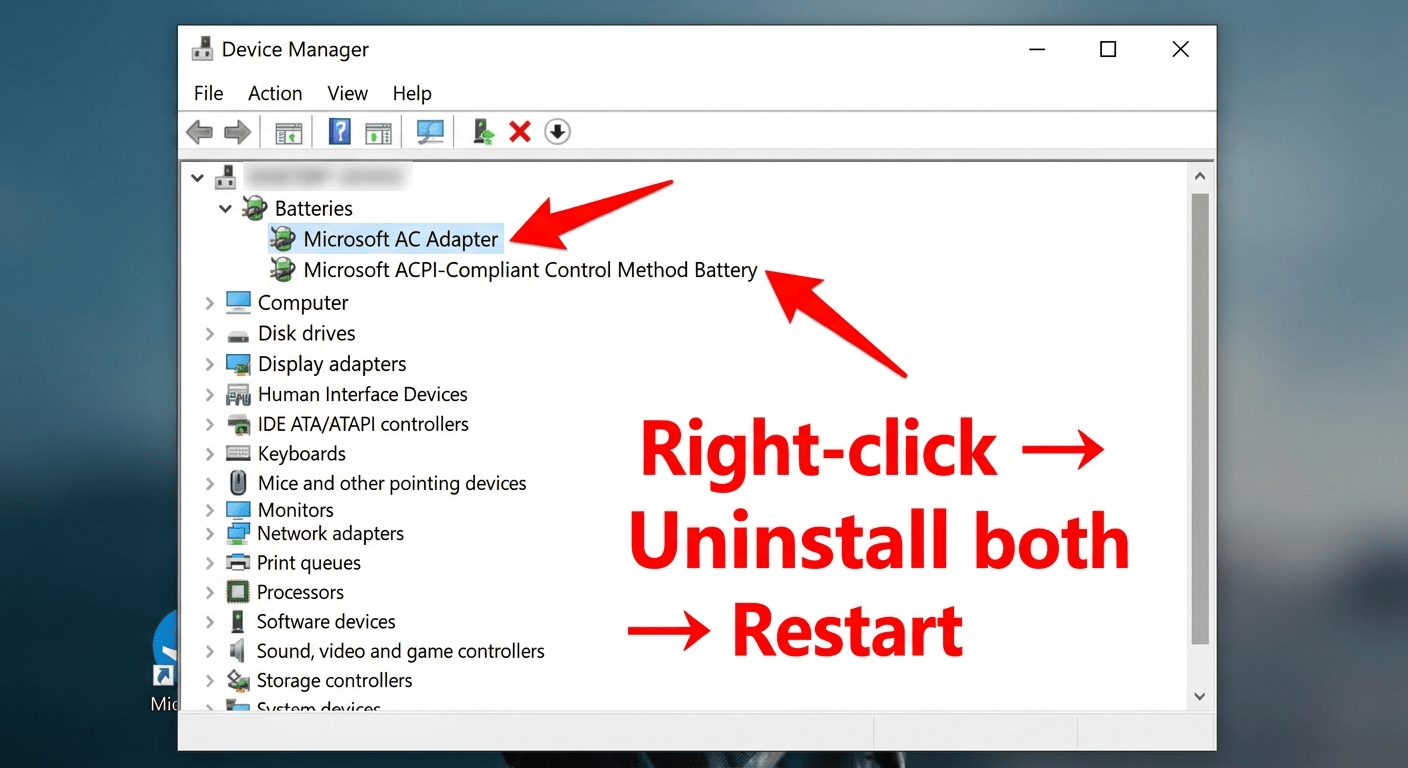
- Right-click Start → Device Manager.
- Expand Batteries.
- Right-click “Microsoft ACPI-Compliant Control Method Battery” → Uninstall device.
- Right-click “Microsoft AC Adapter” → Uninstall device.
- Restart the laptop. Windows reinstalls both drivers automatically.
If the power reset didn’t fix it and the driver reinstall didn’t fix it either, the problem is likely a setting — not a glitch. Move to step 4.
 4. Check Charge Thresholds (The #1 Cause)
If your battery is stuck at 60% or 80% and won’t go higher — this is almost certainly the reason. Modern laptops have a charge threshold feature that stops charging at 60–80% to extend battery life. It’s a good feature. But if you don’t know it’s on, it looks exactly like a charging problem.
| Brand | Tool | Where to Disable It |
|---|---|---|
| Dell | Dell Power Manager | Battery Information → Settings → Charge Mode → set to “Standard” or “ExpressCharge” |
| Lenovo | Lenovo Vantage | Device → Power → Battery Charge Threshold → turn off, or set upper limit to 100% |
| ASUS | MyASUS | Customization → Battery Health Charging → select “Full Capacity Mode” |
| HP | HP Support Assistant or BIOS | Check battery care settings; or BIOS (F10 at boot) → Advanced → Battery Health Manager → set to “Maximize my battery health” off |
If you can’t find the setting in software, check the BIOS. Restart → tap F2 (Dell/ASUS), F1 (ThinkPad), or F10 (HP) during boot → look for Power or Advanced settings → find “Battery Health,” “Conservation Mode,” or “Charge Threshold” → disable it or set to 100%.
⚠️ Temperature Can Also Block Charging
Lithium-ion batteries have a built-in safety cutoff. Below roughly 5°C (41°F) and above 40°C (104°F), charging stops — even if the charger is connected and working. If you just brought your laptop inside from a cold car, let it warm up to room temperature for 30 minutes before trying to charge. If it’s been gaming on a blanket and feels hot to the touch, shut it down and let it cool. This isn’t a malfunction — it’s the BMS protecting the cells.
5. “0% Available” vs “60% Available” — Same Symptom, Different Fix
“Plugged in, not charging” means two completely different things depending on the percentage next to it. Most troubleshooting guides treat them as one problem. They’re not.
| What You See | Most Likely Cause | Fix |
|---|---|---|
| “0% available, plugged in, not charging” | Deep discharge or dead battery. The voltage dropped so low the BMS locked the pack for safety. | Leave it plugged in for 2–3 hours (or overnight) without touching it. Then try the power reset from step 3. If it still shows 0% after that, the battery is dead — replace it. |
| “60% (or 80%) available, plugged in, not charging” | Charge threshold is enabled. The battery is fine — it’s been told to stop at this level. | Go to step 4 and turn off the charge limit. If that doesn’t work, reinstall the battery drivers (step 3B). |
| “[Any %] available, plugged in, not charging” — and it’s been working fine until today | Driver glitch or stuck power controller. | Run the power reset from step 3A. If that doesn’t work, reinstall drivers (step 3B). |
The percentage next to “not charging” tells you where to look. 0% = hardware. 60–80% = settings. Random % that changed suddenly = driver glitch. This one distinction will save you from reinstalling drivers when the battery is dead, or buying a new battery when a charge threshold is on.
6. Just Installed a New Battery? Read This
You swapped in a new battery and now the laptop won’t turn on — or it turns on but won’t charge. Don’t panic. This is normal.
New lithium batteries ship in “shipping mode” — the internal circuit is physically disconnected for safety during transport. The battery looks dead. It’s not. It’s asleep.
The fix: Plug in the AC adapter and leave it connected. The first charge wakes up the battery’s circuit. Some batteries wake up in seconds. Others need 15–30 minutes before they start accepting a charge. If the laptop won’t power on at all, plug it in and wait. Don’t keep pressing the power button — the battery isn’t ready yet.
If the battery still won’t charge after an hour on AC power, check one more thing: open the laptop and reseat the battery connector. I’ve seen connectors that looked fully seated but weren’t — a firm press was all it needed. If the connector is good and it still won’t charge after an hour, contact the seller. That’s what the warranty is for.
7. Generate a Battery Report (Know When to Stop)
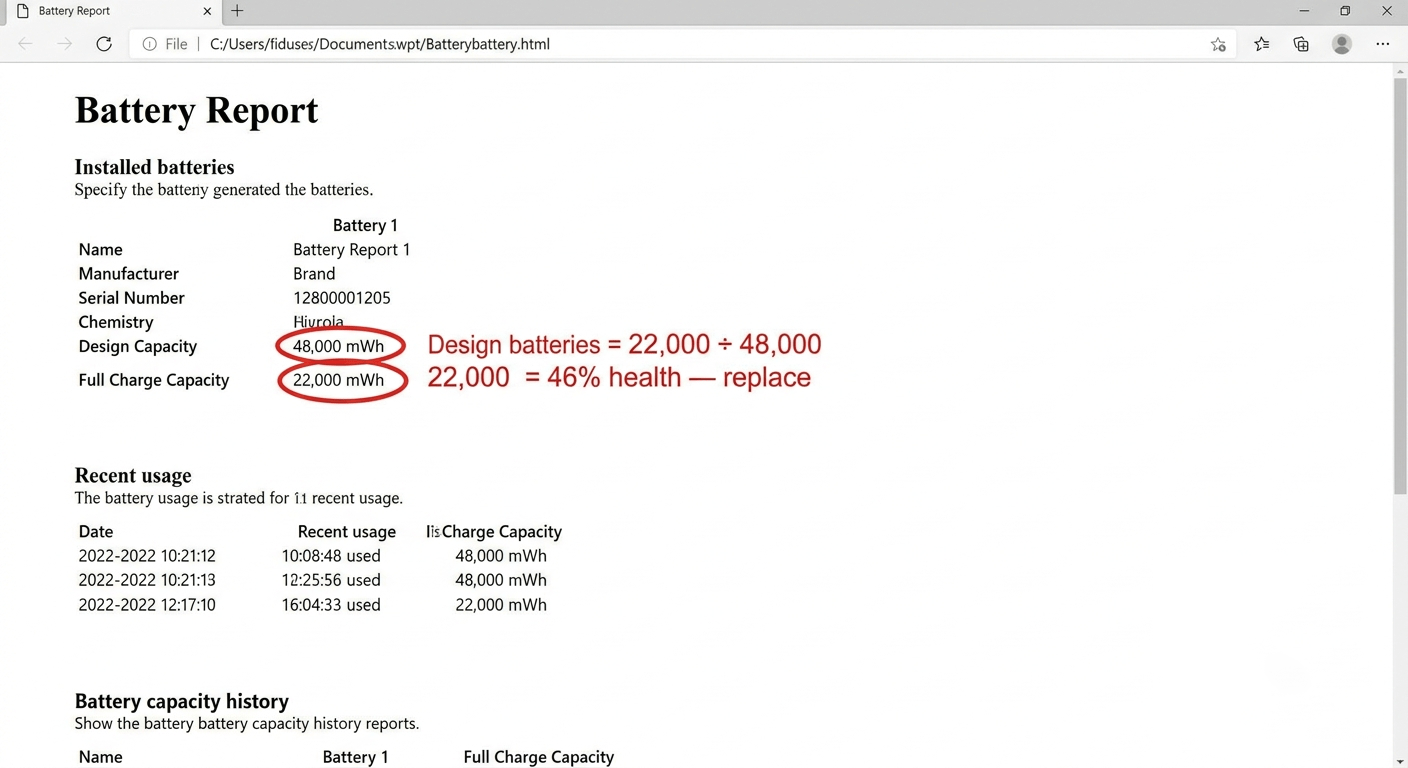
If you’ve worked through steps 1–6 and the battery still isn’t charging, it’s time for hard numbers. This tells you whether to keep troubleshooting or replace the battery.
- Open Command Prompt as Administrator.
- Type
powercfg /batteryreportand press Enter. - Open the saved HTML file. Find “Installed batteries.”
Compare Design Capacity to Full Charge Capacity:
| Full Charge ÷ Design | Health | Action |
|---|---|---|
| Above 70% | Battery is healthy | The problem is elsewhere — charger, port, settings, or motherboard. Keep troubleshooting. |
| 50–70% | Significant wear | Battery is aging. It may still charge but runtime will be short. Start planning a replacement. |
| Below 50% | Battery is dead or dying | Stop troubleshooting. The battery can’t hold charge anymore. Replace it. |
 8. Update BIOS + When to Call It
If your battery report shows healthy capacity but charging still fails, try one last software fix: update your BIOS and chipset drivers from the manufacturer’s support site. Rarely, a firmware bug prevents the laptop from communicating with the battery. Dell, Lenovo, and HP all release BIOS updates that fix battery detection issues.
For ASUS and some Lenovo models, also try an EC (Embedded Controller) reset: shut down, unplug, hold the power button for 40 seconds (longer than the standard power reset). The EC is a separate chip that controls charging — it can get stuck independently of the main BIOS.
When to stop and replace the battery: If the battery report shows under 50% health, you’ve done the power reset, reinstalled drivers, turned off charge thresholds, updated the BIOS, and it still won’t charge — the battery is dead. A new one costs $24.99–$69.99. Further troubleshooting costs you time and frustration for no gain.
Frequently Asked Questions
Why is my laptop plugged in but not charging?
The five most common causes: charge threshold is enabled (stuck at 60–80%), battery driver is glitched, power controller needs a reset, charger wattage is too low, or the battery is dead. Work through the steps in order — each rules out one cause.
How do I reset my laptop battery?
Shut down, unplug, hold the power button for 30 seconds, plug back in, boot up. This drains residual power from the motherboard and resets the power controller. For removable batteries, take the battery out during the 30-second hold. If that doesn’t work, reinstall the battery drivers in Device Manager.
Why is my battery stuck at 0%?
The battery may be deeply discharged — its voltage dropped so low the BMS locked it for safety. Leave it plugged in for 2–3 hours, then try the power reset. If it still shows 0% after that, the battery is dead and needs replacement.
How do I check if my charger is working?
The fastest way: shut down the laptop, plug in the charger, and look for the charging light. No light at all? Try a different outlet. Still no light? The charger or cable is likely dead. If you have a multimeter, you can check the output voltage at the connector tip — it should match the rating printed on the brick.
Can a BIOS update fix battery charging?
Yes — rarely. If the battery report shows healthy capacity and all other steps have failed, a BIOS update can fix a firmware-level communication bug between the laptop and battery. Check your manufacturer’s support site for the latest BIOS version.
What does “plugged in, not charging” mean?
The laptop detects the charger but isn’t sending current to the battery. At 60–80%, it usually means a charge threshold is enabled. At 0%, it usually means the battery is deeply discharged or dead. At any random percentage that started suddenly, it’s usually a driver or power controller glitch.
How do I know if my battery or charger is bad?
Do the shutdown test from step 1. If the laptop charges while powered off, the charger and battery hardware are fine — the problem is in Windows. If it won’t charge even when off, try a known-good charger. If a different charger works, your charger is bad. If no charger works, the battery is likely dead or the charging port is damaged.
When should I replace my battery instead of fixing it?
When the battery report shows Full Charge Capacity below 50% of Design Capacity. Also: if the battery is swollen, physically damaged, or over 4 years old. A $24.99–$69.99 replacement battery costs less than another hour of troubleshooting something that can’t be fixed.
References & Sources
- Microsoft Support — Windows battery care, powercfg /batteryreport, and power troubleshooting documentation.
- Dell Support — Dell Power Manager charge threshold settings and BIOS update documentation.
- Lenovo Support — Lenovo Vantage battery charge threshold and conservation mode documentation.
Battery Report Say It’s Dead? Time to Replace.
Browse quality replacement batteries for Dell, HP, Lenovo, and ASUS. All Tier 1 — Grade A cells, full BMS, 1-year warranty. From $24.99.