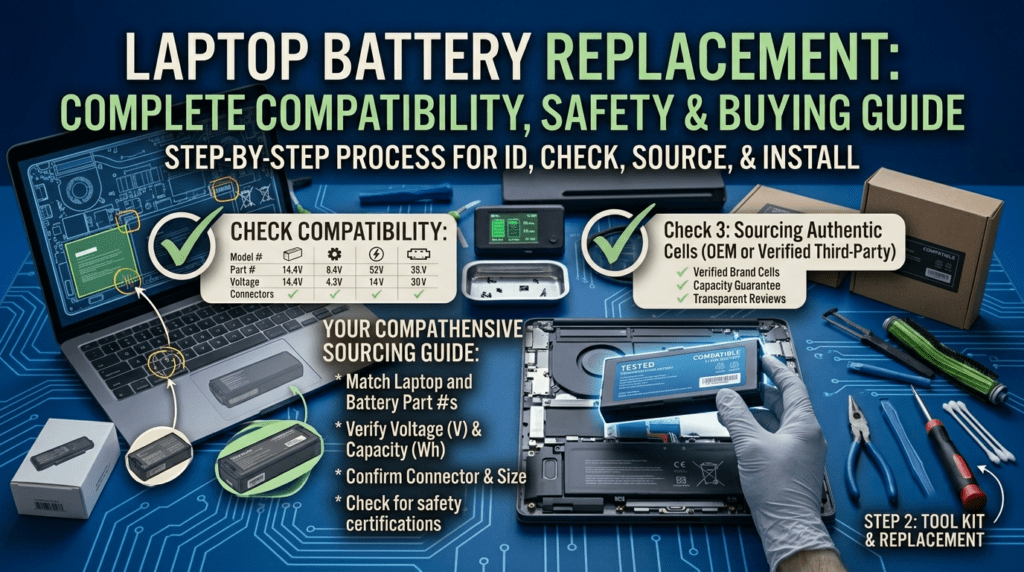
Most people search “battery for Inspiron 15” or “HP Pavilion battery” and click the first result that says “compatible.” That’s how you end up with a battery that doesn’t fit, has the wrong voltage, or uses a different connector — and now you’re dealing with a return instead of a working laptop.
This guide walks through four ways to find your battery’s exact part number. We’ll cover reading the physical label, using Windows system tools, checking your BIOS, and looking up your laptop’s original specs — plus brand-specific format examples so you know you’ve got the right code before you hit “buy.”
This is part of our Laptop Battery Replacement Guide series.
1. The Golden Rule: Part Number Beats Laptop Model Every Time
Laptop manufacturers don’t use one battery per model. They use whatever battery was available, in stock, or specified for that production batch. One Dell Inspiron 15 3000 series shipped with at least four different battery configurations — different shapes, different voltages, different connectors. All of them are “genuine Dell Inspiron 15 batteries.” Only one fits your specific machine.
The same applies across every brand. A Lenovo ThinkPad T480 could ship with a 24Wh external battery, a 24Wh internal battery, a 48Wh external, or a 72Wh external. Search “ThinkPad T480 battery” and you’ll find all of them — but only one combination matches what’s inside your laptop right now.
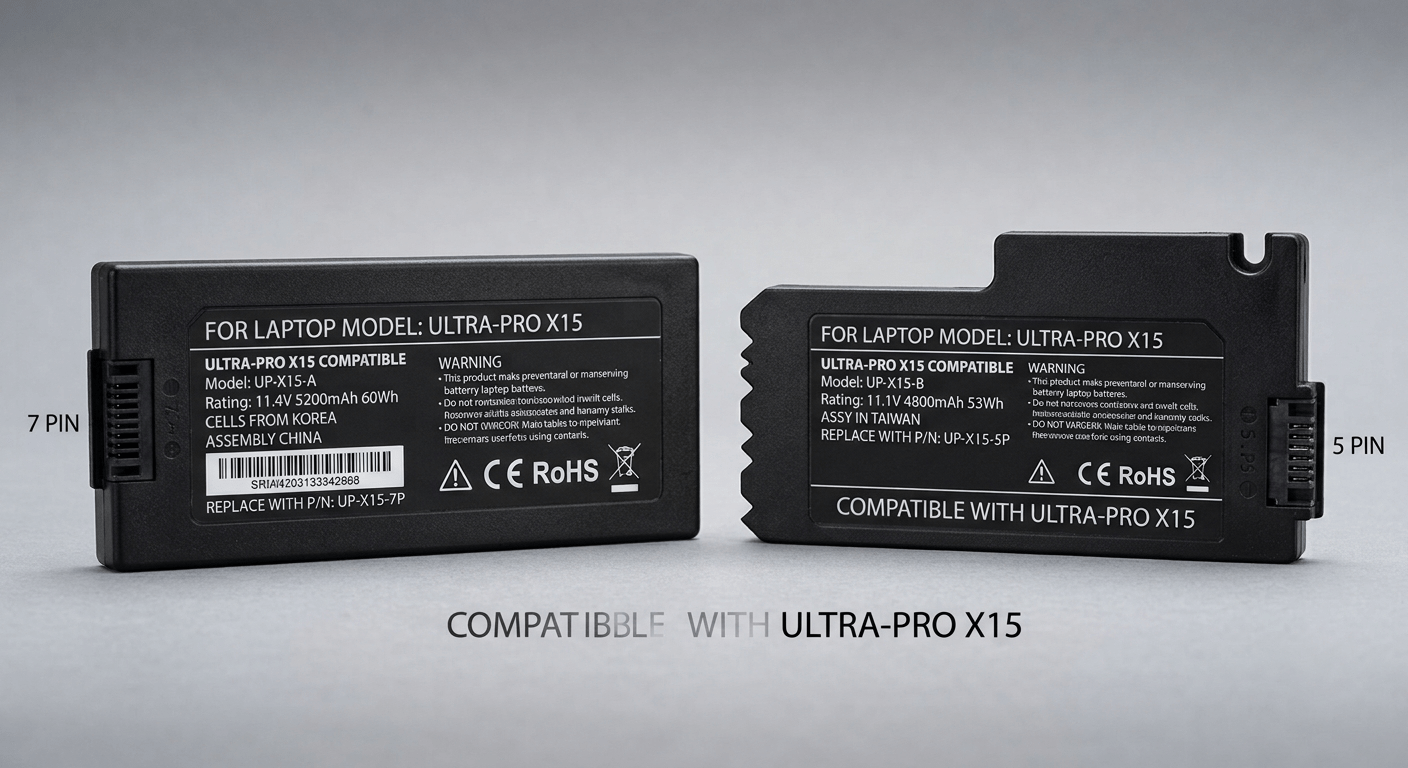
Here’s what “compatible with Dell Inspiron 15” actually gets you: a coin flip. The right part number — like M5Y1K or G91J0 — gets you an exact match. No coin flips, no returns, no week without a laptop.
I’ve seen this play out too many times. Someone orders a “Dell Latitude battery,” installs it, and the laptop doesn’t even power on. Turns out their Latitude 5590 uses a 4GVMP — and the one they bought is a 3DDDG for the Latitude 5580. Same brand, same product line, totally different battery. The 20 seconds it takes to pull the battery and read the label would’ve prevented the whole thing.
2. Method 1: Read the Battery Label (Most Reliable)
This is the method that never fails. The part number is printed directly on the battery — you just need to get to it.
If Your Battery Is External (Removable)
- Shut down the laptop completely. Unplug the AC adapter.
- Flip the laptop over. Find the battery release latch (usually two sliders).
- Slide both latches to the unlock position and lift the battery out.
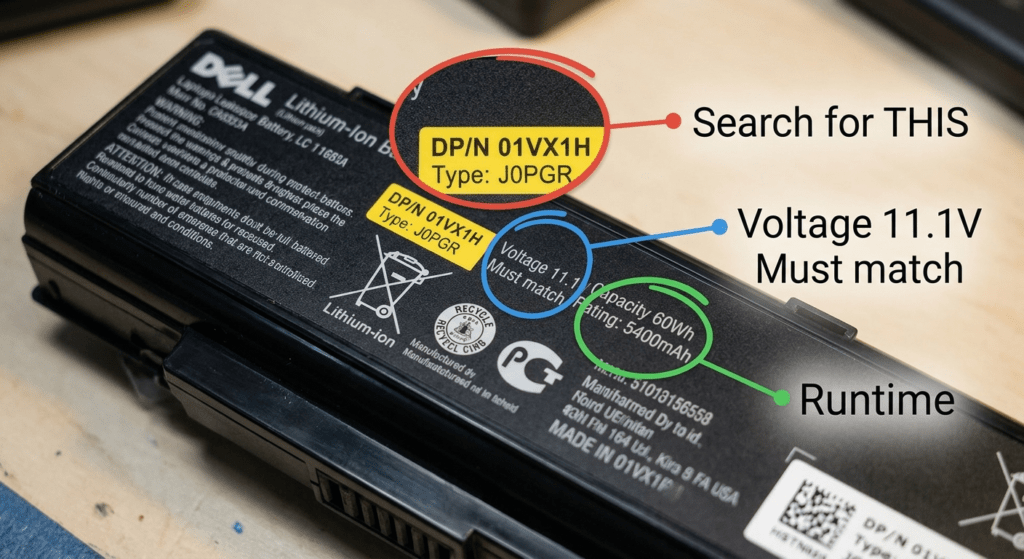
- Look for a white sticker on the battery. Find the field labeled “Part Number,” “P/N,” “Model,” “Type,” or “FRU P/N.”
If Your Battery Is Internal (Built-In)
- Shut down. Unplug. Hold the power button for 15 seconds to drain residual power.
- Remove the bottom panel screws. Use a plastic pry tool to release the clips around the perimeter. Lift the cover off.
- Disconnect the battery cable from the motherboard first — this is a safety step. Use a plastic spudger, not metal.
- Read the label on the battery. Take a photo with your phone so you have the number handy.
What to Look For on the Label
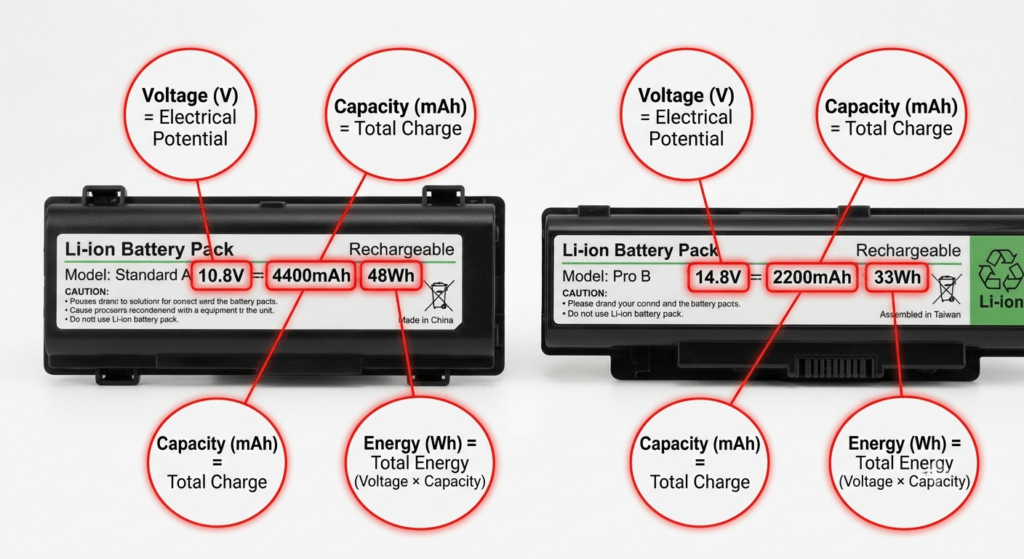
Battery labels vary by brand, but they all include the same basic information. Here’s what you’re hunting for:
| Label Field | What It Means | Use This to Search? |
|---|---|---|
| Part Number / P/N / Type | The manufacturer’s unique identifier for this exact battery | ✅ YES — this is the number you want |
| Model / Model Name | Battery model designation (e.g., L16M2PB2, C31N2313) | ✅ YES — also valid for searching |
| FRU P/N / ASM P/N | Lenovo-specific: Field Replaceable Unit and Assembly part numbers | ✅ YES — Lenovo uses these as primary identifiers |
| Voltage (V) | Operating voltage — must match your original | ⚠️ Use to verify, not to search |
| Capacity (Wh / mAh) | Energy rating — higher Wh = longer runtime | ⚠️ Use to compare options, not to search |
| HSTNN-XXXX (HP Only) | Regulatory model number — NOT a battery part number | ❌ NO — the HSTNN code applies to multiple different batteries. Do not use it. |
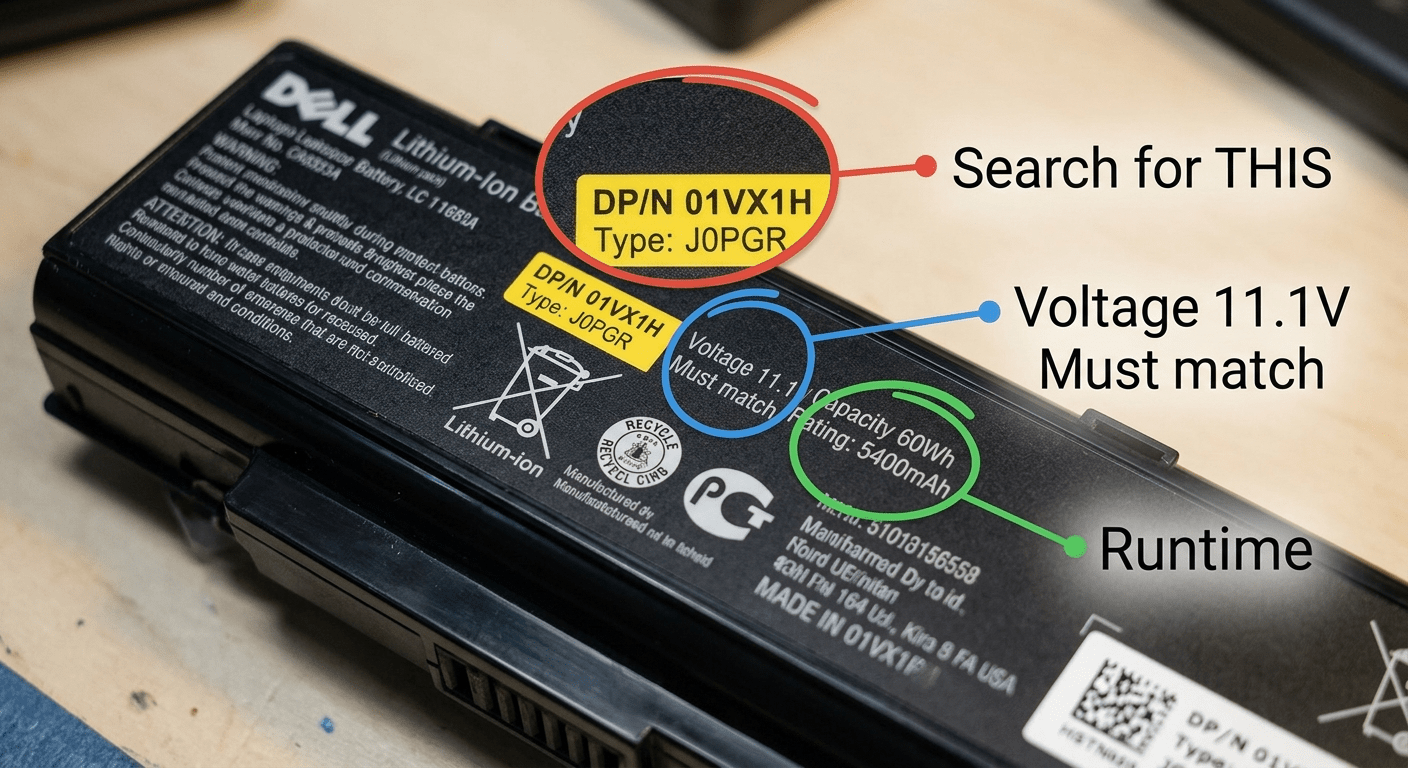
Take a clear photo of the label with your phone. You’ll want that part number handy when you’re shopping — it’s a lot easier than reopening the laptop.
3. Method 2: Windows System Tools (No Disassembly)
If you’d rather not open your laptop — or the battery is glued in and you’re not ready for that level of surgery — you can try pulling the battery info through Windows. Fair warning: this doesn’t always work. Whether the part number shows up depends on the battery and the laptop model.
Option A: Battery Report (Best System Method)
- Right-click Start → Command Prompt (Admin) or Terminal (Admin).
- Type
powercfg /batteryreportand press Enter. - Open the HTML file it generates. Look under “Installed batteries” — if you’re lucky, you’ll see the battery name, manufacturer, and sometimes the part number.
Option B: WMIC Quick Check
Open Command Prompt and run:
wmic path Win32_Battery get Name, Manufacturer
If the battery reports its name, you’ll see something like “Dell M5Y1K” or “LENOVO L16M2PB2” — that’s your model number, which you can use to search.
Option C: Device Manager
- Right-click Start → Device Manager.
- Expand Batteries.
- Right-click “Microsoft ACPI-Compliant Control Method Battery” → Properties → Details tab.
- From the dropdown, select Hardware Ids. Sometimes this includes the battery model.
Limitations: These methods are hit-or-miss. Some batteries report their full details, some report nothing beyond “Microsoft ACPI-Compliant Control Method Battery.” If the system tools don’t give you a clear part number, you’ll need to open the laptop and read the label — there’s no software shortcut around that.
4. Method 3: BIOS & Manufacturer Software
Some laptops store battery information in the BIOS or in the manufacturer’s bundled software.
Check the BIOS
- Restart your laptop.
- During startup, tap the BIOS key repeatedly — usually F2, F10, Del, or Esc (the screen usually tells you which one during boot).
- Navigate to System Information or Battery Information.
- You may see the battery model, part number, and health status here.
Manufacturer Software Shortcuts
| Brand | Tool | Where to Check |
|---|---|---|
| Dell | Dell Power Manager | Battery Information tab — shows model, part number, and health |
| Dell | support.dell.com | Enter your Service Tag → System Configuration → original battery part number listed |
| Lenovo | Lenovo Vantage | Device → Power → battery model and FRU number displayed |
| HP | HP Support Assistant | Battery check — may show spare part number |
| HP | partsurfer.hp.com | Enter serial number → shows all original parts including battery |
The Dell Service Tag and HP PartSurfer lookups are especially useful for older laptops — even if the original battery label has worn off, the manufacturer’s database still has your machine’s original configuration on file.
5. Method 4: Laptop Bottom Label + Cross-Reference (Least Reliable)
If you absolutely can’t open the laptop and the system tools aren’t cooperating, you can try this as a starting point — but treat any result as “needs verification,” not “confirmed.”
- Flip the laptop over. Find the model number on the bottom label — it’ll say something like “Model: Inspiron 15-3567” or “Type: 20L5-S0A200.”
- Search for “[laptop model] original battery part number” or “[laptop model] battery FRU.”
- Cross-reference the results against your laptop’s specs (voltage, Wh) to narrow down which variant you have.
- Before ordering, compare the connector position and battery shape against the product photos in the listing.
6. Brand-Specific Part Number Formats (Quick Reference)
Different brands use different naming schemes. Once you know what your brand’s format looks like, it’s a lot easier to spot the right number on the label — and to tell when a listing is using a generic description instead of a real part number.
| Brand | Part Number Format | Real Examples | Label Field to Look For |
|---|---|---|---|
| Dell | 5-character alphanumeric “Type” code, or 312-xxxx DP/N | M5Y1K, G91J0, 4GVMP, F3YGT, 3HWPP | “Type” or “DP/N” on battery label |
| HP | 6-digit + 3-digit spare number, or short letter+digit code | 919680-851, HT03XL, MU06, CM03XL | “Spare” or “SPS” number; NOT “HSTNN-XXXX” |
| Lenovo | 01AVxxx, or LxxM/LxxL format, or FRU P/N | 01AV423, L16M2PB2, SB10K97642 | “FRU P/N” or “ASM P/N” or model name |
| ASUS | CxxNxxxx (3-cell) or BxxNxxxx (older 3-cell) | C31N2313, B31N2015, C41N1906 | “Model” or “Battery Model” on label |
| Acer | KT.xxxxx.xxx or APxxXxx format | KT.0040G.002, AP18E8M | “P/N” or model name |
| Samsung | AA-PBxx format | AA-PBZN4TP, AA-PBPN4NP | “Model” or “P/N” on battery |
| Toshiba | PAxxxxU-xxxx format | PA1234U-1BRS, PA3817U-1BRS | “Part Number” on label |
The HP “HSTNN” Trap
If you have an HP laptop, you’ll see a code on the battery that looks like “HSTNN-LB6M” or “HSTNN-DB7F.” It’s printed prominently and looks like it should be the part number.
It’s not. The HSTNN code is a regulatory model number — it identifies the battery’s compliance filing, not the battery itself. Multiple physically different HP batteries can (and do) share the same HSTNN code. I’ve seen people order a battery using only the HSTNN number and receive something with the wrong connector entirely.
Always use the Spare number (SPS) or the short code like HT03XL, MU06, CM03XL — not the HSTNN number.
7. The 4-Point Compatibility Checklist
You’ve got a part number. Before you click “buy,” run through these four checks. Each one catches a different kind of mismatch.
| # | Check | How to Verify |
|---|---|---|
| ① | Part number matches exactly | Compare the number on your battery label against the listing. It should match character for character — not “similar,” not “compatible with.” Same number. |
| ② | Voltage matches | Must be the same. Exception: 10.8V = 11.1V and 14.4V = 14.8V are interchangeable (same cell count, different labeling). But 11.1V ≠ 14.8V — those are completely different battery architectures. |
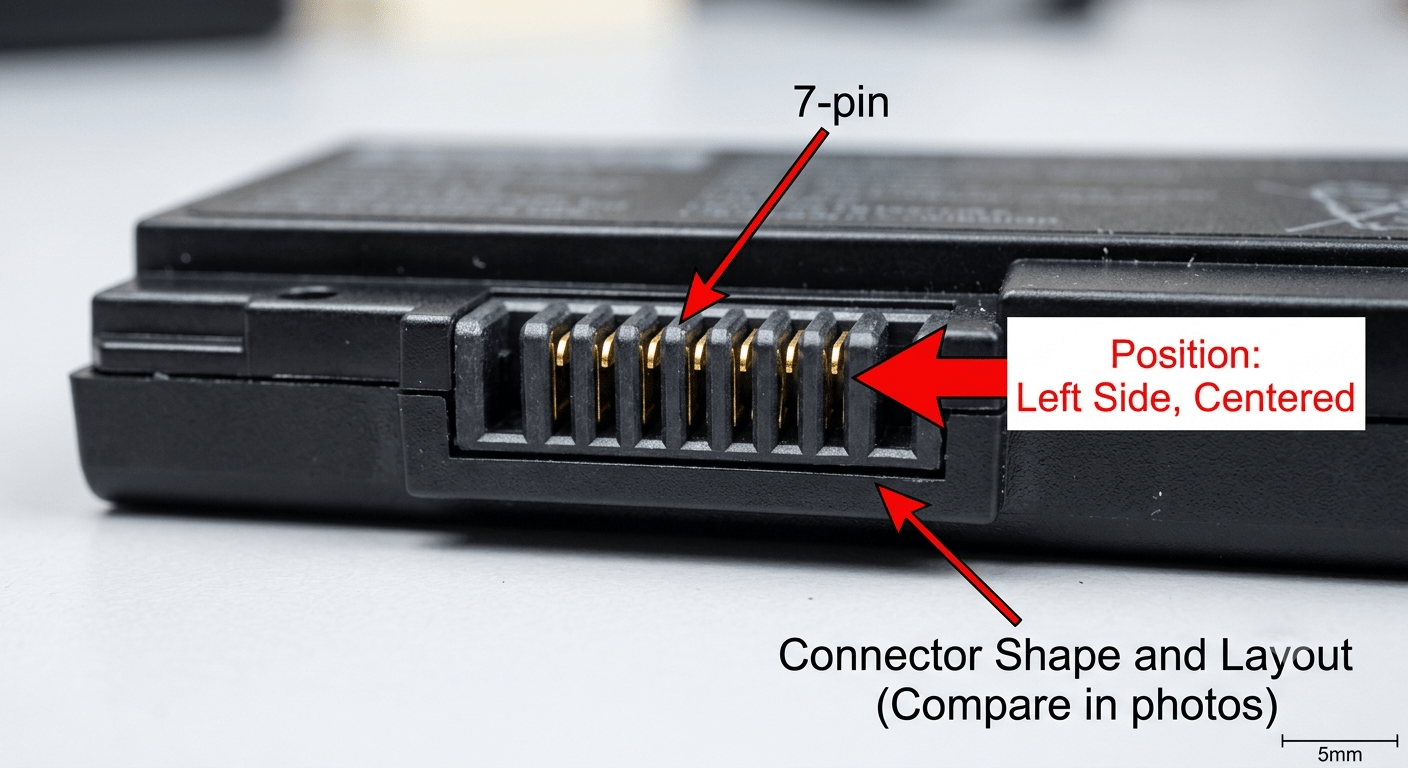
| ③ | Connector position and type match | Look at the product photos. Is the connector on the same side? Same number of pins? Same shape? If the connector is on the left in your battery and the right in the listing — that’s a different battery. |
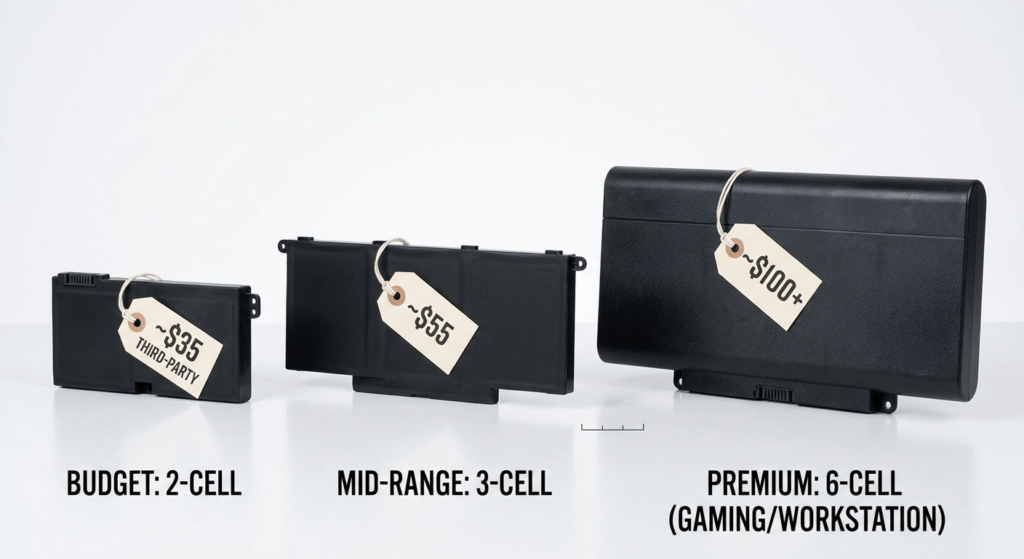
| ④ | Physical shape and dimensions match | Check for notched corners, screw hole positions, and overall shape against the listing photos. Some batteries for the same laptop model are physically different shapes — especially on Lenovo ThinkPads (external vs internal vs extended). |
8. Common Mistakes That Cost You Time and Money
| Mistake | Why It Happens | How to Avoid |
|---|---|---|
| Buying by laptop model alone | Listings say “Compatible with Inspiron 15” — but there are 20+ Inspiron 15 variants | Use the part number printed on your battery. Always. |
| Ignoring voltage | Two batteries look identical but one is 11.1V and the other 14.8V | Voltage is printed on every battery label. Check it. |
| Using HSTNN codes for HP | HSTNN is the most prominent code on many HP batteries | Skip the HSTNN. Use the Spare (SPS) number or the short code instead. |
| Trusting “compatible with” in the listing title | Sellers cast a wide net in titles — the title is marketing, not a compatibility guarantee | Verify against your part number yourself. The seller doesn’t know which variant you have. |
| Assuming brand + model = one battery | Laptop lines have multiple sub-models, screen sizes, and production runs | Dell Latitude 5590 ≠ 5580. HP EliteBook 840 G5 ≠ G6. The battery may be different. Check. |
The most expensive battery is the one you have to buy twice. Taking an extra two minutes to read the label and verify the part number is free. A return label, a restocking delay, and another week without a working laptop isn’t.
9. What If the Battery Label Is Worn Off?
Old batteries sometimes shed their labels — the adhesive dries out, the ink fades, or heat makes the sticker peel. If your label is unreadable, you’re not out of options:
- Dell Service Tag lookup — go to support.dell.com, enter the Service Tag from the bottom of your laptop, and check the “System Configuration” or “Parts” section. The original battery part number is listed there.
- HP PartSurfer — go to partsurfer.hp.com, enter your serial number. It’ll show every part your laptop shipped with, including the battery.
- Lenovo Support — enter your serial number at support.lenovo.com → Parts → As-Built configuration.
- Search by laptop model + “original battery” — cross-reference the results against your laptop’s specs. Confirm voltage and connector match the listing photos before ordering.
The manufacturer lookup is the best fallback method — it tells you exactly what left the factory, not what “might be compatible.”
Frequently Asked Questions
Where is the part number on a laptop battery?
It’s printed on a white sticker on the battery itself. Look for fields labeled “Part Number,” “P/N,” “Type,” “Model,” or “FRU P/N.” You may need to remove the battery to read it — external batteries pop out with a latch; internal batteries require removing the bottom panel.
Can I find my battery part number without opening the laptop?
Sometimes. Try running powercfg /batteryreport or wmic path Win32_Battery get Name in Command Prompt. Dell users can look up their Service Tag on support.dell.com. But the physical label is always the most reliable method — system tools don’t always report the part number.
What does a Dell / HP / Lenovo battery part number look like?
Dell uses 5-character codes like M5Y1K or G91J0. HP uses spare numbers like 919680-851 or short codes like HT03XL. Lenovo uses 01AVxxx or LxxMxxxx format numbers, plus FRU P/N and ASM P/N codes on the label.
Is the laptop model number enough to find a compatible battery?
No. One laptop model often ships with multiple battery variants — different voltages, connectors, and shapes. The model number narrows it down but doesn’t guarantee a match. Always verify with the battery’s part number.
What if my original battery label is worn off?
Look up your laptop’s serial number or service tag on the manufacturer’s support site — Dell, HP, and Lenovo all show the original battery part number in your machine’s as-built configuration. You can also search by laptop model and cross-reference against voltage and connector type.
What happens if I install the wrong battery?
Best case: it doesn’t fit and you return it. Worst case: wrong voltage damages the charging circuit, or a physically incompatible battery shorts against the motherboard. Always verify the part number, voltage, and connector before installing.
How do I read a laptop battery label?
Look for the part number (usually labeled “P/N,” “Type,” or “Model”), the voltage in volts (V), and the capacity in watt-hours (Wh) or milliamp-hours (mAh). On HP batteries, ignore the HSTNN code — it’s a regulatory number, not a part identifier.
References & Sources
- Dell Support — Service Tag lookup for original system configuration and battery part numbers.
- HP PartSurfer — Official HP parts lookup by serial number, including battery spare numbers.
- Lenovo Support — Parts lookup and as-built configuration for ThinkPad and IdeaPad models.
- Microsoft Support — Windows battery report (powercfg /batteryreport) documentation.
Got Your Part Number? Find Your Battery Here
Browse batteries for Dell, HP, Lenovo, ASUS, Acer, Samsung, and more — search by your exact part number for a guaranteed fit.